
The public pages are very easy to learn and understand. The public pages are: Home, About, Catalog, Showcase, Resources, and Contact. At the head or top of each page, you will see your company's logo, location, and business phone number shown below.

Below the heading on each page you will see the public navigation bar where each page has a button as shown below. To go to a page, you just left-mouse-click the corresponding button. As you move across the buttons you will notice the color of the button changes to a dark green color indicating that it is the page you will open if you left click your mouse on it. When the page has been clicked, you will notice the button changes to a dark maroon color to indicate the page you are now on. On the image below, it indicates that you are on the Home page.

At the bottom of each public page you will see the page footer with navigation links and copyright information as shown below.

The home page is where your customers will land when they visit your site. They will see the things that management felt were the most important for them to know or see. Below the navigation bar on each page is where the individual page content is kept.
The search links may be a picture or a word or a letter of the alphabet. On the home page the images that are label on themselves as shade trees, flowering, evergreen, and other are categories of plants sold at My Tree Farm.
The shade tree category are a collection of tree that provide shade in the spring and summer...trees like oak, and maple trees.
Flowering trees are in the category of trees that flower in the spring or fall such as dogwood or crape myrtle tree.
Evergreen trees are in the category of trees that stay green throughout the year. Some may even flower as well or produce berries.
The other category is the category of trees that are not specifically shade trees, flowering trees or evergreen trees. This category is the group of trees that do some or part of the trees mentioned above but not in the same magnitude. These trees may even have a combination of features that the other categories have.
By clicking on any of the four image search links, the site visitor will be taken directly to the catalog page where there will be a pictorial listing of plants only in the category they selected. They also have the option to click on the first letter of the name of the plant they are searching for. The categories are also to the left of the image listing in case the visitor wishes to look up another category. These search features far surpass the mechanism provided by version 1.0 of the site.
The search box in the navigation bar can be used by experienced customers who already know what they are looking for. When they type in the name of a tree they will be taken directly to the catalog page where the plant will be rendered for them to see. From there they will be able to click on the "View more information!" link to learn more about the plant including inventory holds.
Lastly, the user may left-click on the Catalog button on the navigation bar which will take them to the Catalog Viewer page where they may look up a plant in the selection dropdown box. Again, they are given the opportunity to search directly from the search box in the navigation bar or click on a category link on the top left of the page.
The content management system (CMS) is for staff members and is password protected. For tutorial purposes, the user name is "admin" and the password is "admin". The only way to get to the admin CMS is to type it manually into the browser url field.

Your url should look like http://mytreefarm.com and to get to your admin section you would type in admin at the end with a / before it like this: http://mytreefarm.com/admin. Once it is typed in, press enter on your keyboard and you will be taken to the admin content management system (CMS) login which will look like this below:
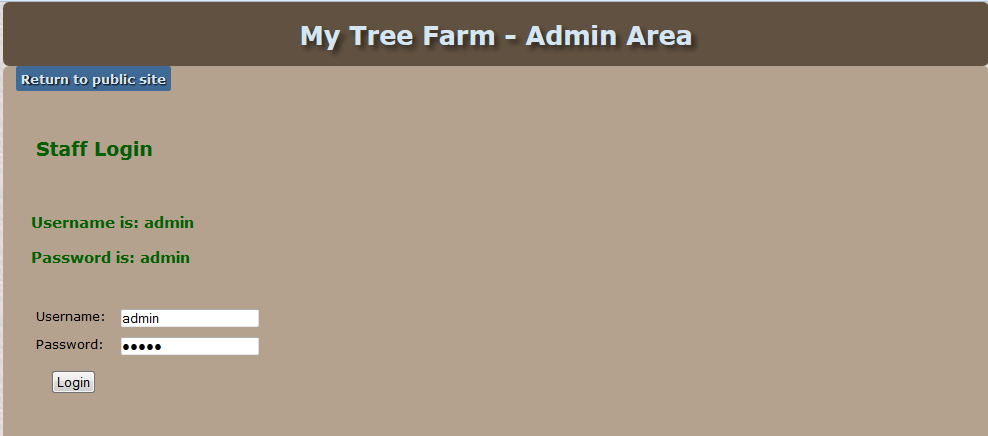
You will also notice that from here you can click "Return to public site" to go back to the public version of the site. At this page, to get into the CMS to Create, Edit, Update, or Delete (CRUD will be used to describe the above in all other areas of documentation where it applies to content management) information on your site, just type in 'admin' for Username and 'admin' for Password and then click the Login button.
Next you will land on the CMS "logged in" page which looks like the below image.
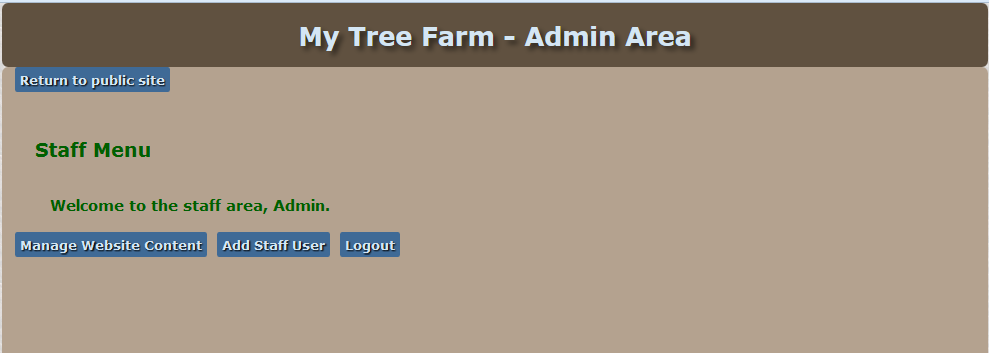
Still from here you have the option to go back to the public home page by clicking the "Return to public site" link. Also you may click the "Logout" button that will take you back to the login page if you would like to log in as a different user.
If desired, you may even add a new staff member with privileges to perform CRUD on the public site.
The "Add Staff User" button takes you to a page which is illustrated below.
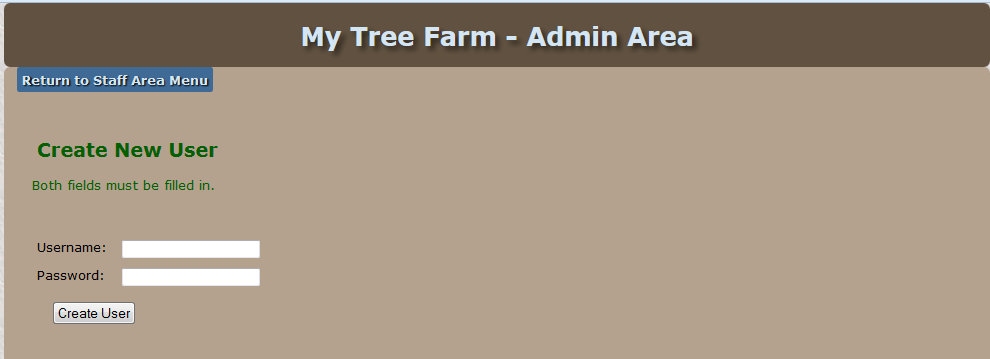
This is very straight forward. Type in the new user's Username and Password and click "Create User" and the new user will be added to the database as an authorized user of the site's CMS. When the user is added, there will be a confirmation message. At that time click "Return to Staff Area Menu" to get back to the CMS as shown below.
Now to the most important part of the CMS. Click the "Manage Website Content" button and you will see the page shown below.
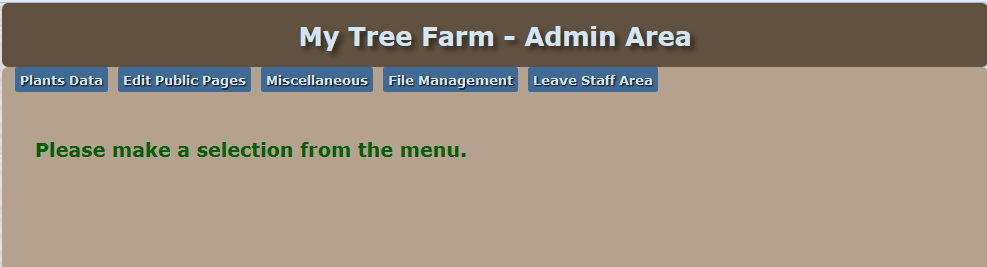
This page show a navigation menu at the top giving you access to Plant Data, Edit Public Pages, Miscellaneous, File Management, and Leave Staff Area.
Plant Data lets you edit CRUD for the each plant system. A plant system is the plant itself, its descriptive attributes, a table of inventory, and close-up and far away image viewing. Mouse over the images and you will be able to see a larger version of the same image. The Editing Plants and Inventory Page is shown below.
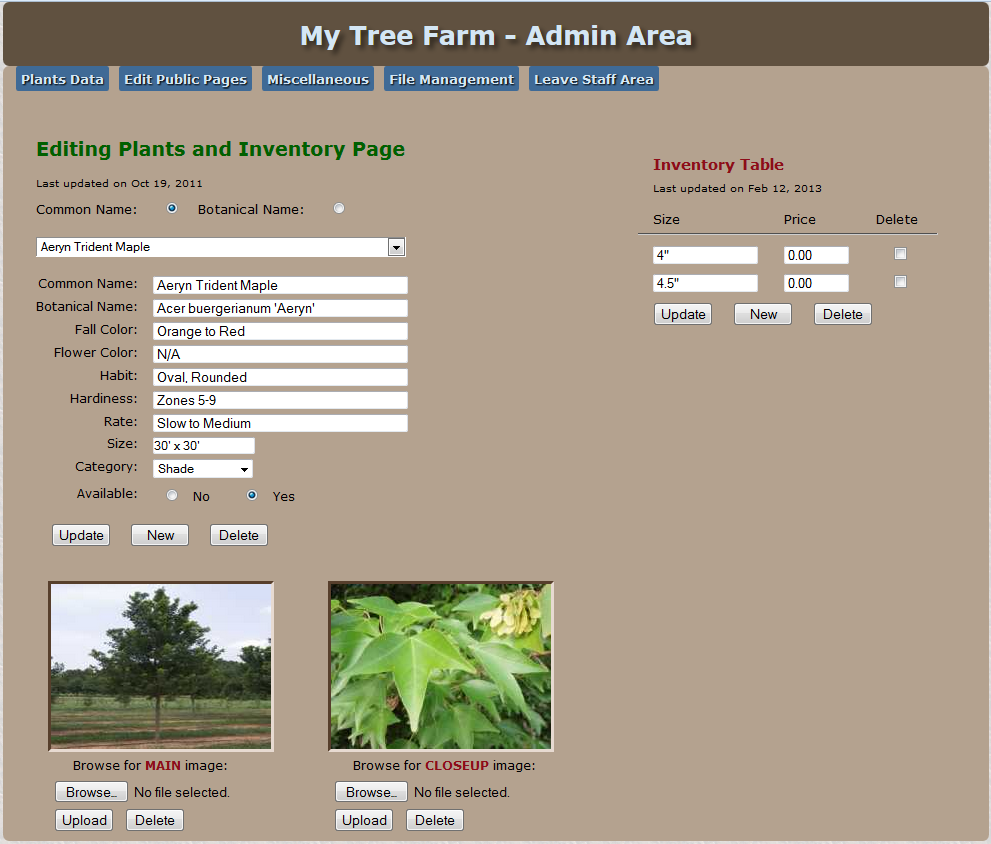
Plant systems can be added, inspected for accurate data fields, updated or deleted. Also the plant system page allows for the plants to be uploaded and be deleted.
The "Edit Public Pages" button allows you to edit the general content on each public page. The general content is usually the least updated because of its non-dynamic nature.
The Miscellaneous button is the quick and easy home page editing area where you can keep Announcements and Specials current on the home page.
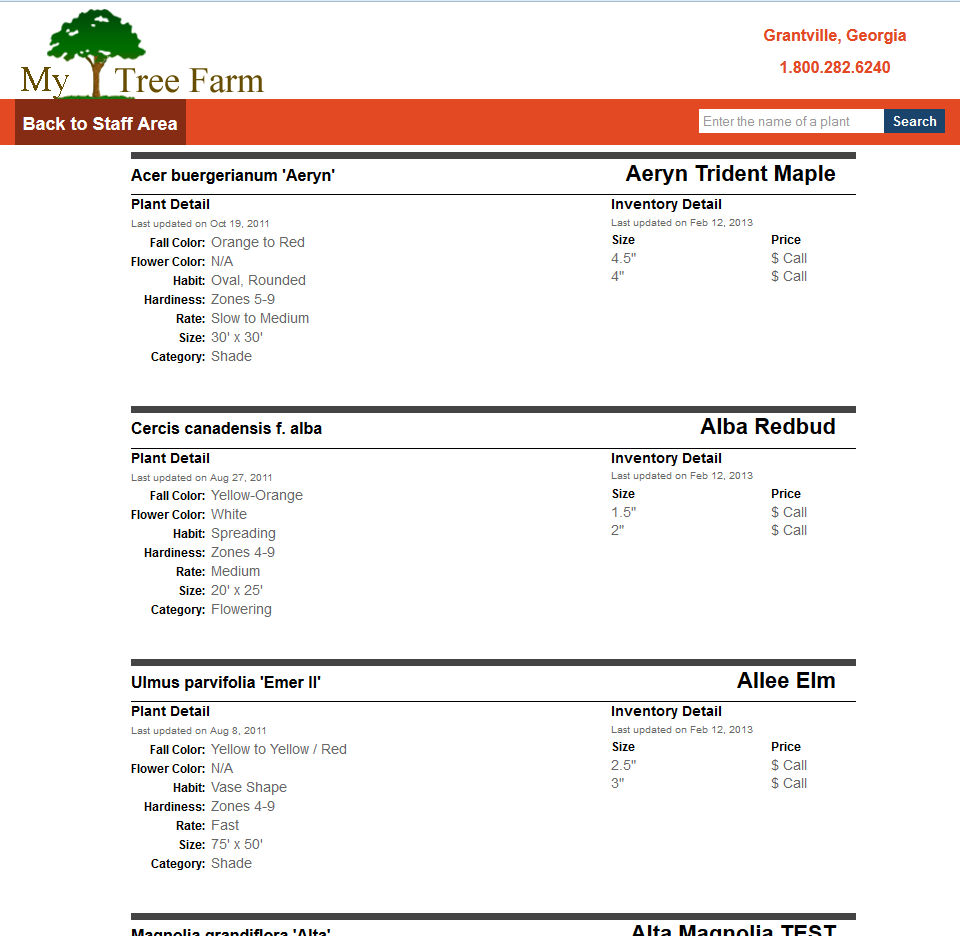
The File Management is the area where you can export your entire plant and inventory into a Microsoft Excel file. You may also view the plant and inventory database in tabular format in a Web page.
See the image below to see how it looks when the Export link is clicked.
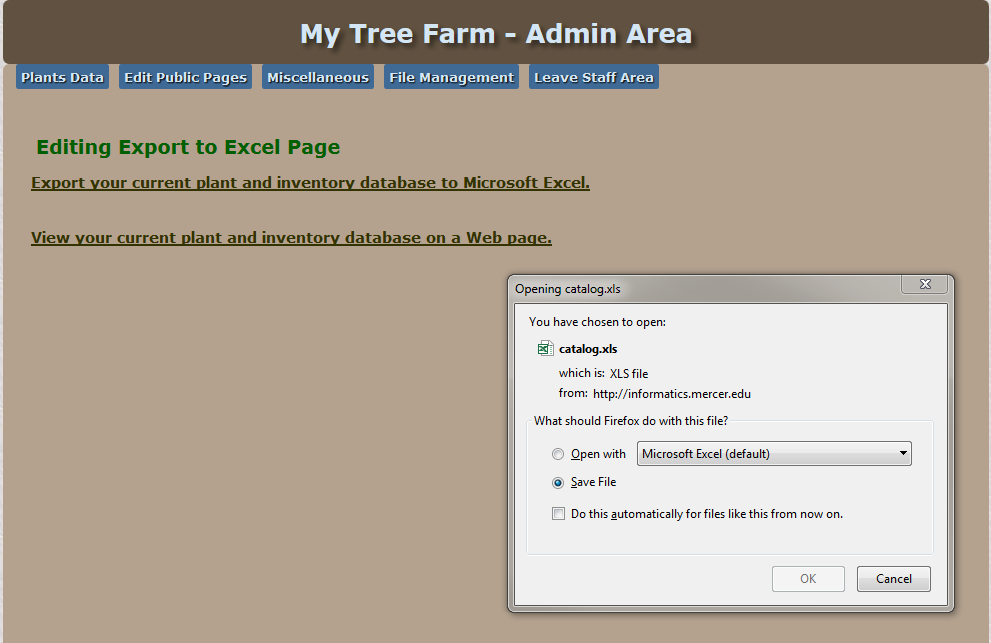
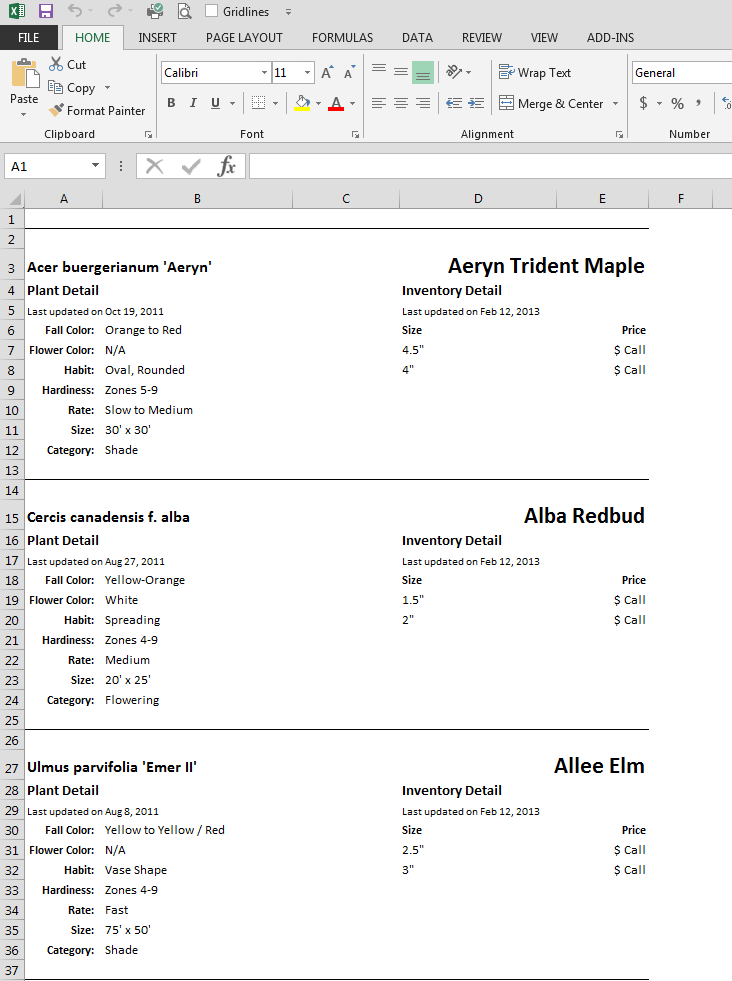
The file will be saved to a folder of your choice on your computer as catalog.xls. You must have Microsoft Excel to view the file or a free .xls viewer you can find online by Googling for it. When opening the exported Excel file you will get a message as shown below.

Do not worry, the file is fine. Click Yes to open the file anyway and it will open just fine as shown in the image below.
Still in the Export to Excel Page, clicking the link to view your plants and inventory on a Web page will give you as shown below.
If you choose the Upload PDF option from File Management, you will land here:
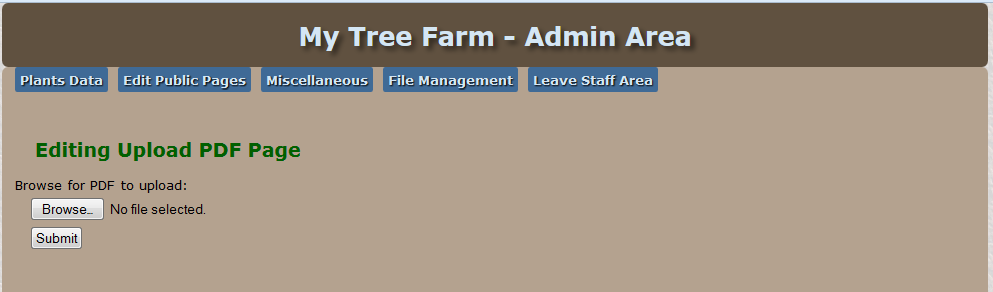
For the most current PDF of your plants and inventory, you should save your latest Excel export as a PDF. When you have done that, you should then upload it to your site files folder which is done automatically when you click the Submit button on the Upload PDF Page.
From there, your customers will be able to download the PDF file from the public Catalog page by clicking the link on Line 4 as shown below.
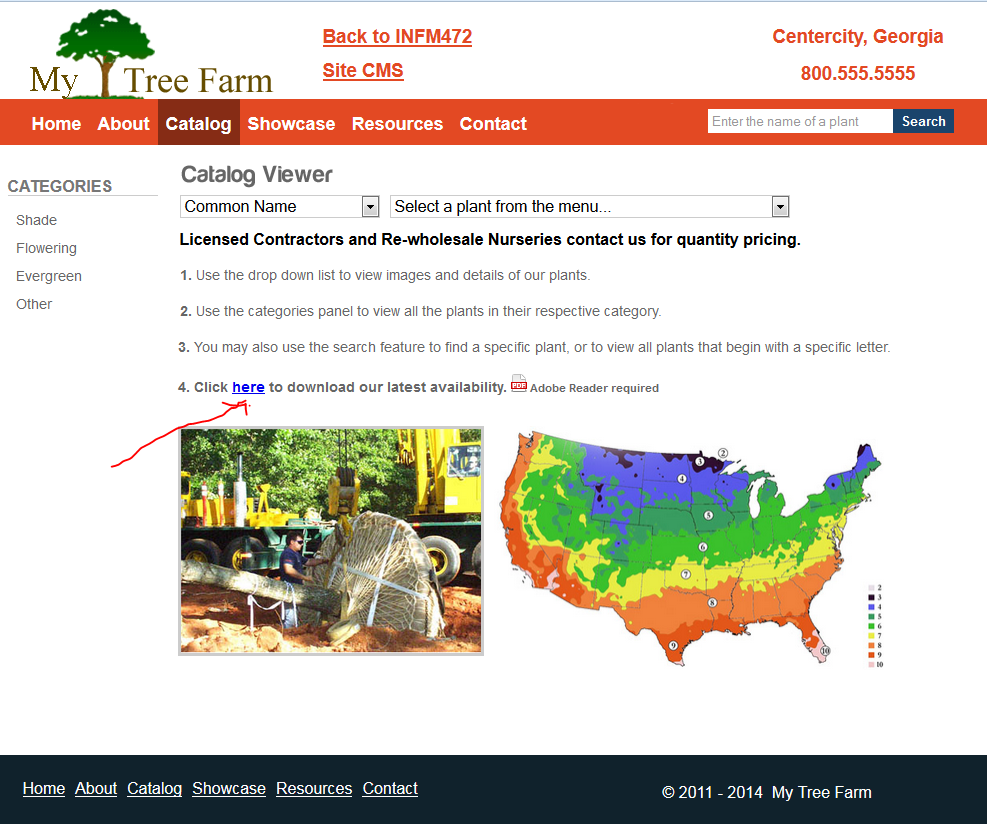
It is up to you to keep the latest PDF available for your customers by using the method explained above.
This wraps up the documentation to the website. For anything that may have been missed or you do not understand, you may call for support at 555-515-4111.
The database system is complete with nine tables that are updated through your site's contact management system. But for a brief overview of the database, the most important tables will be discussed. The database appears as below in a web developer's database management program.
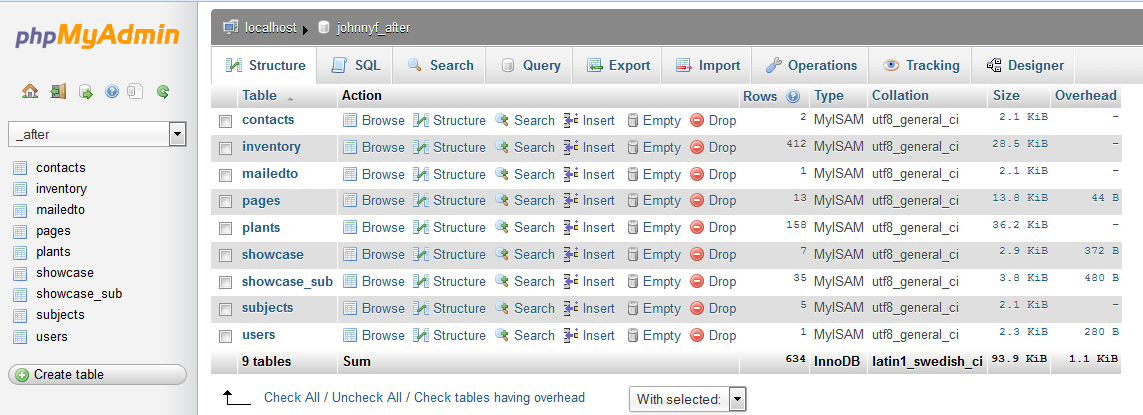
You can see the table names to the left side of the image. The main and most important table to consider is the plants table. All interactions between the staff and the database will be conducted through the content management system. No other outside interaction is recommended or facilitated other than the content management system. But just for informational purposes, the plants table is shown below.
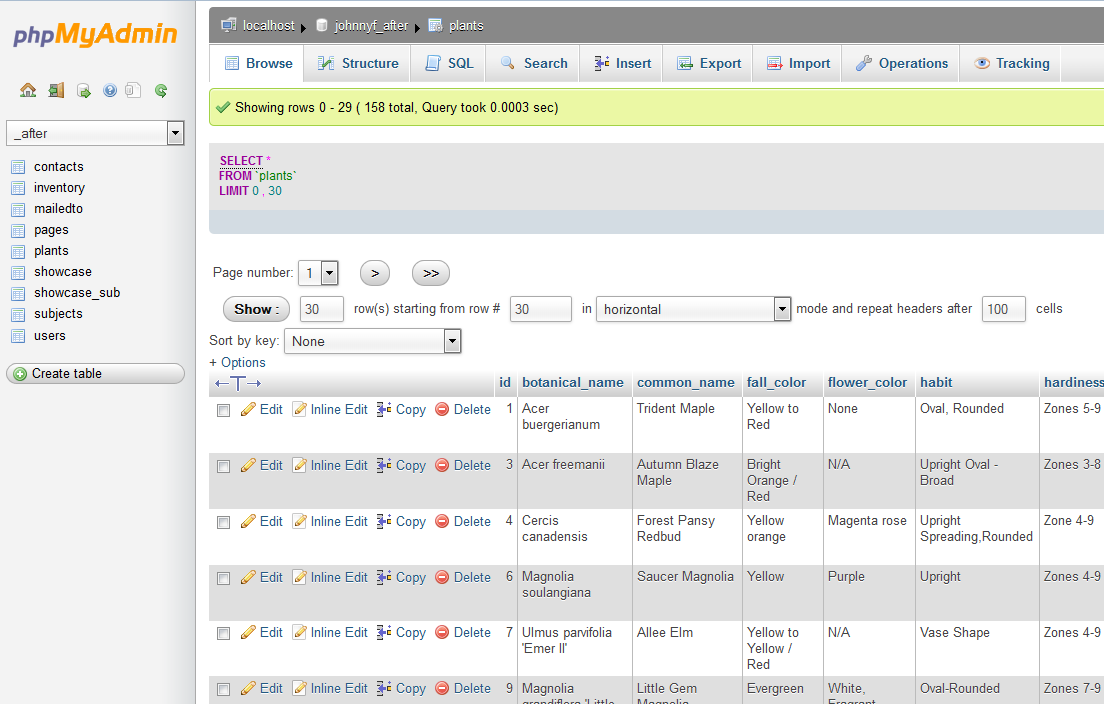
If you have questions concerning the database and its content, please call support at 555-515-4111.